


 Français
 Español
 Deutsch
 Italiano
 Русский

POINTDEV
Espace Reva
2 allée Josime MARTIN
13160 CHATEAURENARD
FRANCE
Tel : 33 9 77 63 61 94
Fax : 33 4 32 62 71 35 Tel: 33 9 77 63 61 94
Espace Reva
2 allée Josime MARTIN
13160 CHATEAURENARD
FRANCE
Tel : 33 9 77 63 61 94
Fax : 33 4 32 62 71 35 Tel: 33 9 77 63 61 94

FAQ : IDEAL DISPATCH
Deploy, execute and manage your IT actions remotely from a single interface
Some examples of deployments by using IDEAL DispatchEmail Action - How to generate reports on each computer and send them by email? |
How to generate reports on each computer and send them by email? How does the email action work? |
|
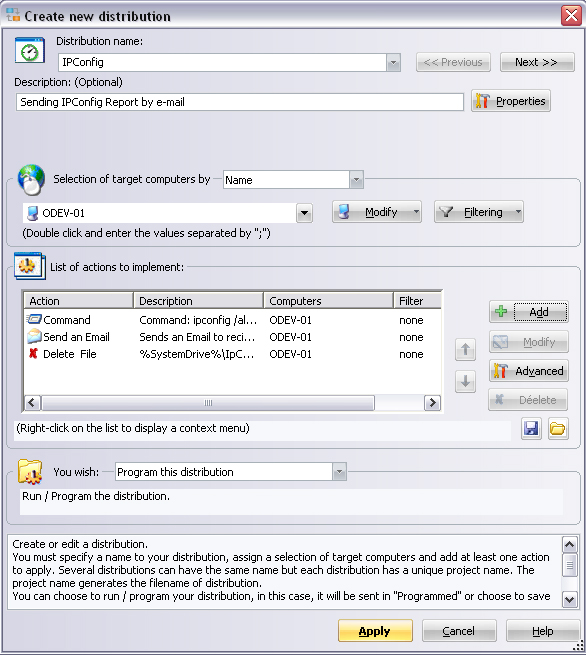
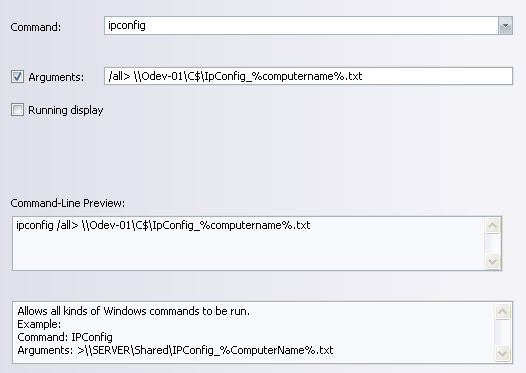
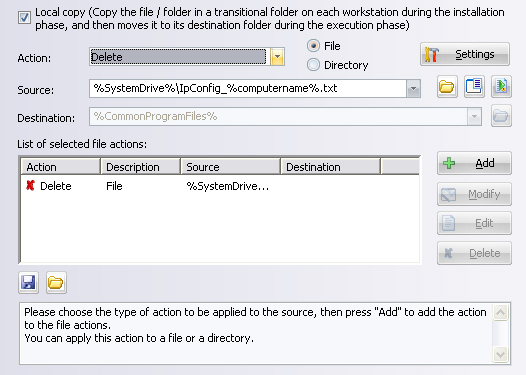
Pre-requisite: This example describes the procedure to generate reports from the IPCONFIG command on each target computer and send them by E-mail.
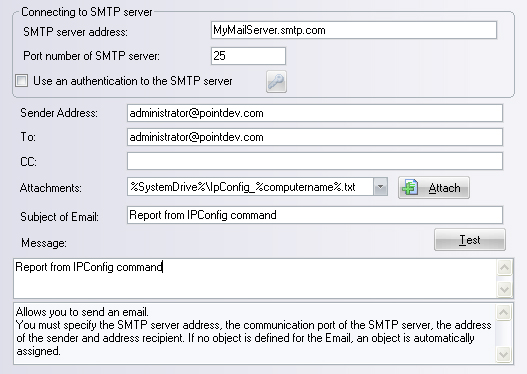
You must set the following arguments:
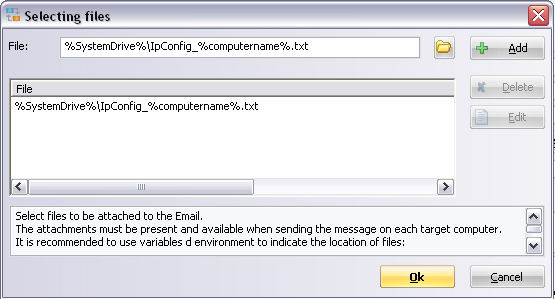
You can set the following options: (in bold the required informations)
|
| Last modification: 05/24/2013 |
Want to check for yourself? Try IDEAL DISPATCH free for 30 days.
DOWNLOAD FREE 30-DAY TRIAL
No commitment • No agent • Support included • Ready to use in 5 minutes

Previous

Next
Back to the list

IDEAL DISPATCH 9.9
DOWNLOAD FREE 30-DAY TRIAL
SOFTWARE
SERVICES
SITEMAP
POINTDEV
ESPACE REVA2 ALLEE JOSIME MARTIN
13160 CHATEAURENARD
FRANCE


