


 Français
 English
 Español
 Italiano
 Русский

Espace Reva
2 allée Josime MARTIN
13160 CHATEAURENARD
FRANCE
Tel : 33 9 77 63 61 94
Faxnummer : 33 4 32 62 71 35 Tel: 33 9 77 63 61 94

FAQ : IDEAL DISPATCH
Stellen Sie Ihre IT-Aktionen remote bereit, führen Sie sie aus und steuern Sie sie über eine einzige Oberfläche
What are the different filters available during deployments?How to apply custom filters to specific computers? |
How to apply custom filters to specific computers? |
|
You can create your own custom filters from the registry. To ease the creation of a custom filter, values / registry keys are presented in the form of tabs divided into three lists:
In the case of Installed software and Windows patches tabs, the name of the filter field corresponds to the columns of the selected list. So when you change the selection in this field, its corresponding value is automatically filled.
List of available conditions:
|
| Letzte Änderung: 15/05/2013 |
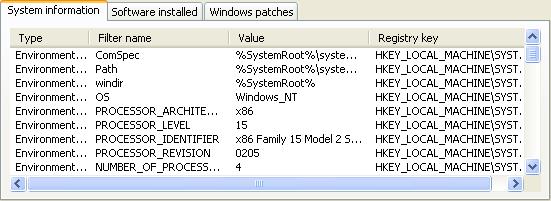
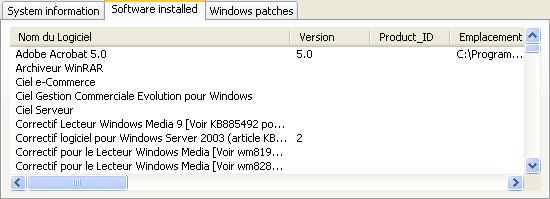
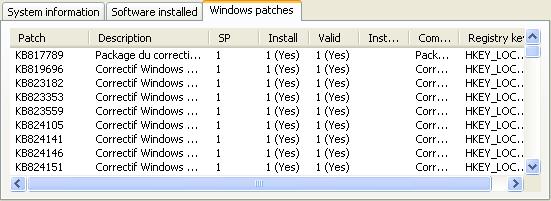
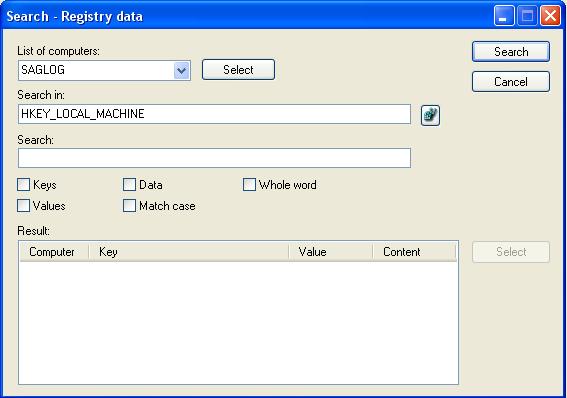
 ) button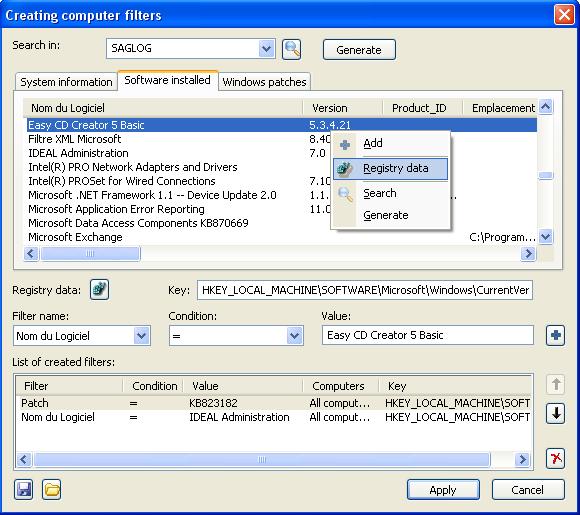
 ) button allows you to browse the registry.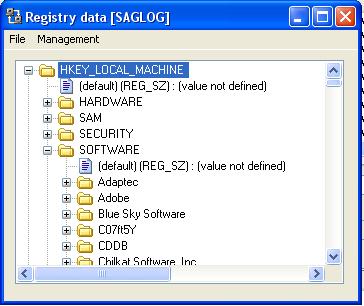
Möchten Sie es selbst überprüfen? Testen Sie IDEAL DISPATCH 30 Tage lang kostenlos.
Unverbindlich • Ohne Agent • Support inklusive • In 5 Minuten einsatzbereit


IDEAL DISPATCH 9.9
30-TAGE-TESTVERSION HERUNTERLADE
SOFTWARE
DIENSTLEISTUNGEN
SITEMAP
POINTDEV
ESPACE REVA2 ALLEE JOSIME MARTIN
13160 CHATEAURENARD
FRANCE


