


 Français
 English
 Deutsch
 Italiano
 Русский
How can I set a permanent RustDesk connection password on a client computer?
I would like to be able to connect to client workstations on my network using the same password on each one. This would allow me to connect even if no one is at the keyboard to accept my connection. Is this possible? If so, how?
Yes, this is entirely possible.
In IDEAL ADMINISTRATION, you can configure a permanent RustDesk connection password on a client workstation in order to allow remote control without any action required from the user.
This permanent password can be configured in two ways:
- directly from IDEAL ADMINISTRATION, via the Settings button
- manually from the RustDesk interface installed on the remote workstation
➡️ Recommended method: configure the password from IDEAL ADMINISTRATION
The easiest method is to use the RustDesk configuration window integrated into IDEAL ADMINISTRATION.
From the RustDesk management interface in IDEAL ADMINISTRATION, click the following button:
Settings
The RustDesk Settings window allows you in particular to:
- select the RustDesk server to use for Internet connections
- use the Pointdev secure RustDesk server with a licensed version of IDEAL ADMINISTRATION
- configure a custom RustDesk server if your organization uses its own infrastructure
- enable a permanent password for RustDesk connections
- manually enter this password or automatically generate one
To configure the permanent password:
- open the RustDesk Settings from IDEAL ADMINISTRATION
- check the option Enable a permanent password
- enter the desired password or use the Generate button
- confirm with the OK button
The password must comply with the security rules shown in the window:
- minimum 6 characters
- at least 1 letter
- at least 1 digit
- at least 1 special character
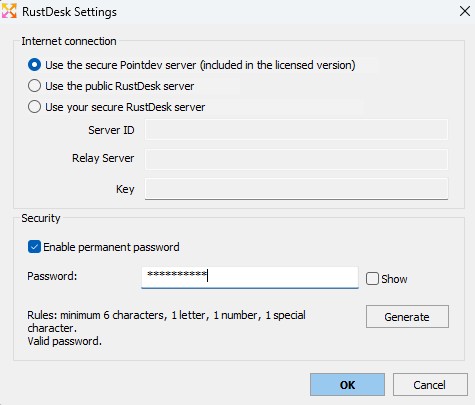
This method avoids having to manually open the RustDesk interface on the remote workstation in order to change the permanent password.
➡️ Why use a permanent RustDesk password?
Once this permanent password has been configured, administrators can connect remotely to the client workstation:
- with or without the user being present at the workstation
- without any manual confirmation on the user side
- to perform administration, maintenance, or technical support tasks
This configuration is particularly useful for managed workstations, servers, or machines that need to remain accessible to IT support.
➡️ Recommended restriction: allow RustDesk only for administrators
When installing or configuring RustDesk from IDEAL ADMINISTRATION, it is recommended to enable the following option:
Allow only administrators to use RustDesk
This restriction helps prevent the workstation user from modifying certain RustDesk settings or using RustDesk for unauthorized connections.
Since the use of RustDesk can be restricted to the workstation administrators, this configuration ensures:
- usage strictly reserved for IT support
- no unauthorized user-to-user connections
- more secure remote control in line with professional best practices
➡️ Alternative method: change it from the RustDesk interface
It is also possible to change the permanent password directly from the RustDesk interface on the remote workstation.
In this case, the steps are as follows:
- establish an initial remote control session to the workstation
- launch the RustDesk application on the remote workstation
- open the RustDesk settings, then go to the Security section
- click Unlock security settings
- set a permanent password for incoming connections
✅ Summary
To configure a permanent RustDesk password on a client workstation, the recommended method is to use the Settings button directly from IDEAL ADMINISTRATION.
This centralized configuration makes it easier to manage the permanent password, the RustDesk server in use, and the connection settings, without having to manually work in the RustDesk interface on the remote workstation.


