Français
 Español
 Deutsch
 Italiano
 Русский
How to apply custom filters to specific computers?
How to apply custom filters to specific computers?
You can create your own custom filters from the registry.
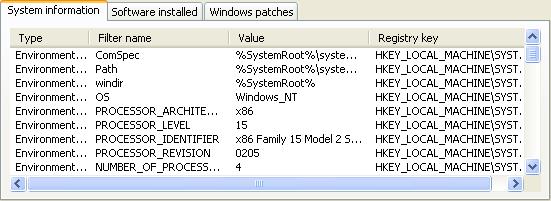
To ease the creation of a custom filter, values / registry keys are presented in the form of tabs divided into three lists:
- System informations: Selected informations about hardware, environment variables, OS version and video.
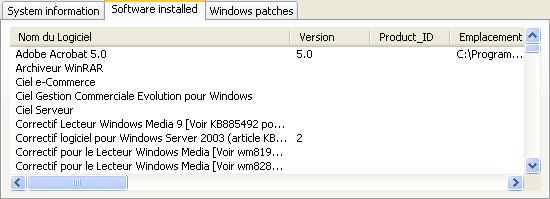
- Installed softwares: Informations about installed softwares.
- Windows patches: Informations about installed Windows patches.
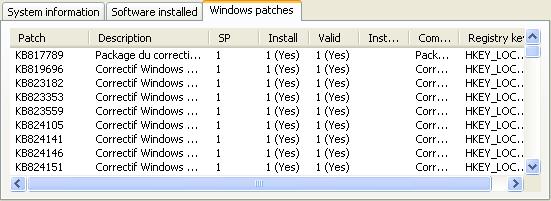
In the case of Installed software and Windows patches tabs, the name of the filter field corresponds to the columns of the selected list. So when you change the selection in this field, its corresponding value is automatically filled.
When you select an item from the list, the Name of the filter, value and key are automatically filled. You can change the contents of the fields, then validate with ( ) button to add the filter to the selection.
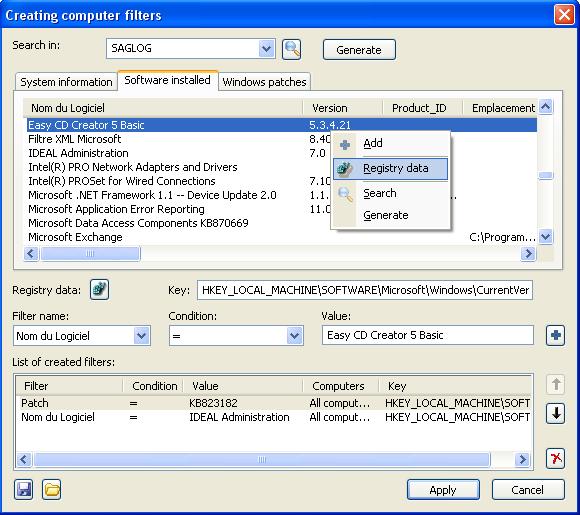
List of available conditions:
- Equal: "="
- Different: "!="
- Strictly greater than: ">"
- Strictly less than: "<"
- Greater than or equal: ">="
- Less than or equal: "<="
- Starts with
- Ends with
- Contains
- Does not start with
- Does not end with
- Does not contain
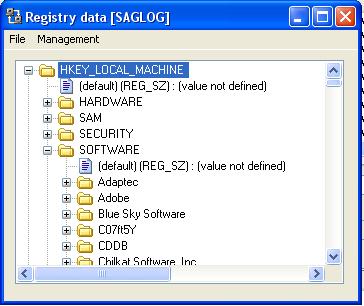
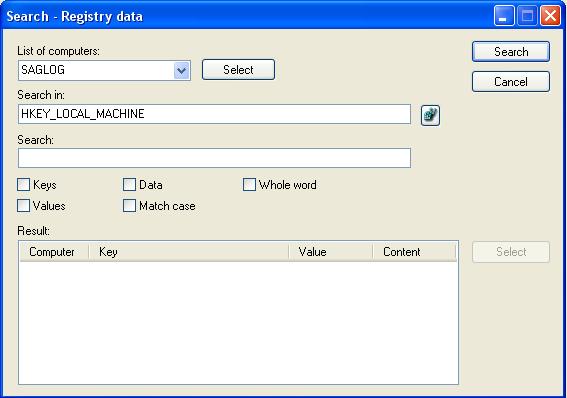
The ( ) button allows you to browse the registry.
So you can easyli search and select a value/key from the registry.