


 Français
 Español
 Deutsch
 Italiano
 Русский

Espace Reva
2 allée Josime MARTIN
13160 CHATEAURENARD
FRANCE
Tel : 33 9 77 63 61 94
Fax : 33 4 32 62 71 35 Tel: 33 9 77 63 61 94

FAQ : IDEAL ADMINISTRATION
Control your Active Directory in real time, without agents
How to manage database inventories of Windows Active Directory Domain?How to list the mapped drives of a computer? |
I would like to get all the mapped drives of a machine in a file. Is it possible and how may I proceed ? |
|
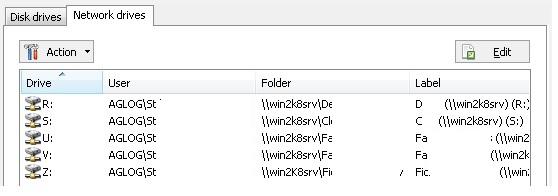
Yes, it is effectively possible to realize such an inventory with IDEAL Administration. First, download the free 30 day version of our software if you have not installed it yet: Download IDEAL Administration. Once installed, just execute it under a domain admin account. Our tool offers several possibilities in order to do manage and list mapped drives:
Use the right click on the computer, "Properties", "Devices", "Network drives" tab.
"Inventory" menu, "Systems", "Network drives". You can inventory several computers at once and export these information in a CSV or HTML file.
"Tools" menu, "Options", "WMI" tab. Configure the WMI properties by adding the "Win32_MappedLogicalDisk" classe if it does not exist yet in the list. Then, right click on a computer, and choose "WMI properties". Select in the list "Win32_MappedLogicalDisk". - The "DeviceID" property indicates the letter of the mapped drive. - The "ProviderName" property indicates the network path name to the logical device. - The "VolumeName" property indicates the volume name of the logical disk Clicking the "Export" button, you can define information to export in a .csv file. The "Win32_LogicalDisk" WMI class can also be useful ("DriveType" = 4).
Right click on the computer, then "Command prompt". The NET USE command lists all the computer's connection. Then the result can be redirected to a text file. |
| Last modification: 04/06/2023 |
Want to check for yourself? Try IDEAL ADMINISTRATION free for 30 days.
No commitment • No agent • Support included • Ready to use in 5 minutes


IDEAL ADMINISTRATION 26.8.5
DOWNLOAD FREE 30-DAY TRIAL
SOFTWARE
SERVICES
SITEMAP
POINTDEV
ESPACE REVA2 ALLEE JOSIME MARTIN
13160 CHATEAURENARD
FRANCE


