


 Français
 Español
 Deutsch
 Italiano
 Русский
How to deploy software or scripts while maintaining the UAC (User Account Control) of client computers enabled?
I would like to use your IDEAL Dispatch software to deploy software on my Windows network.
Your FAQ indicates that remote administration requires the User Account Control (UAC) to be disabled on client computers, but we would like to keep it for security reasons.
How can I do ? And is it possible to use your software with UAC enabled?
You should know that UAC can block execution of scripts or software installation on client computers. This is why we recommend disabling it for the use of our software.
However, there are two methods to use IDEAL Dispatch while keeping the UAC enabled.
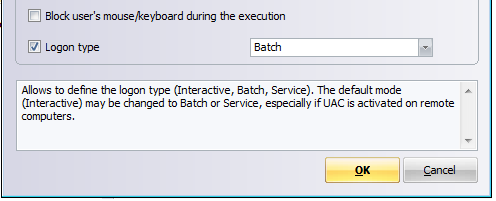
The first method is to use the domain's "Administrator" account (BUILTIN) to perform deployment tasks. This account can override an enabled UAC on the stations. You also have to configure the option: "Open a session" to "Batch" for the distribution executions: Properties \ Running \ Advanced, check Logon type and select Batch).
The second method is to use the local account "Administrator" of the clients and by disabling UAC usage for this account (and only this account).
To do this, you must implement the following prerequisites:
- The passwords of the local account "Administrator" of the client computers must be identical.
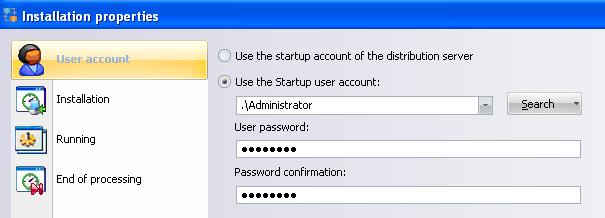
- You must use the local account "Administrator" when creating the distributions (see image below).
- You must disable the UAC for the local administrator through the registry. This deactivation is done by the following registry key: HKLM \ Software \ Microsoft \ Windows \ CurrentVersion \ Policies \ System. Modify or add (if no) the value "FilterAdministratorToken" to set it to "0". Adding / modifying this value requires to restart the computer to be taken into account.
Configuring the Local Administrator account for distributions:
Reference : https://technet.microsoft.com/en-us/library/da2218bd-681b-4acc-bd02-fb9857821fb2