


 Français
 English
 Español
 Italiano
 Русский

Espace Reva
2 allée Josime MARTIN
13160 CHATEAURENARD
FRANCE
Tel : 33 9 77 63 61 94
Faxnummer : 33 4 32 62 71 35 Tel: 33 9 77 63 61 94

FAQ : IDEAL Alerter
Überwachen, benachrichtigen und reagieren Sie auf Ihren Servern und Stationen
Examples of alertsForbidding the launch of Windows Live Messenger |
Alert : How to forbid the launch of "Windows Live Messenger" |
|
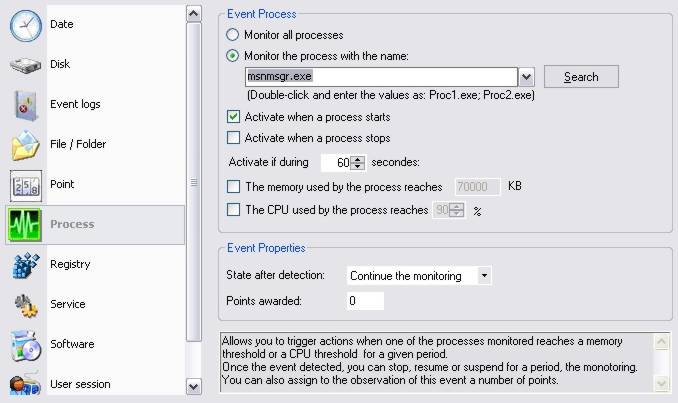
This example describes the procedure to use in order to forbid on one or more target computers, the running of the "Windows Live Messenger" software. This software will be automatically closed after a few seconds, as soon as IDEAL Alerter will detect it has been launched. This topic can also be used as a starting point to block other programs (Firefox, Internet Explorer, ICQ ...) or junk programs. The approach will be then relatively similar, only the name of the process to monitor will have to be modified.
The "msnmsgr.exe" process matches here the "Windows Live Messenger" application. The state after detection "Continue the observation", enables to infinitely pursue the monitoring of this process.
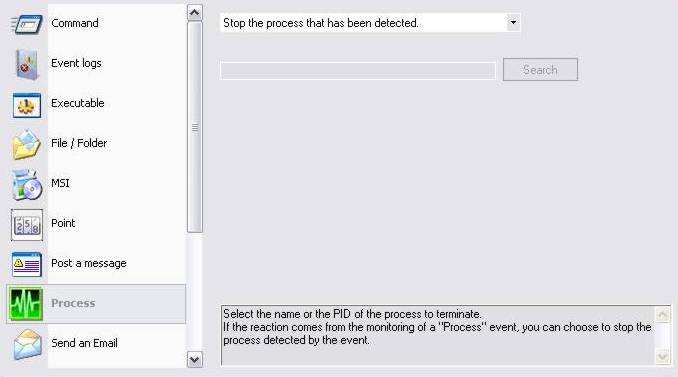
The option "Stop the process that has been detected" allows to automatically stop the "msnmsgr.exe" process, that has been defined on the event to monitor. Another option would have been to select in the drop-down list "Enter the name of the process to be stopped", then enter "msnmsgr.exe".
|
| Letzte Änderung: 15/02/2010 |
Möchten Sie es selbst überprüfen? Testen Sie IDEAL Alerter 30 Tage lang kostenlos.
Unverbindlich • Ohne Agent • Support inklusive • In 5 Minuten einsatzbereit


IDEAL Alerter 2.0
SOFTWARE
DIENSTLEISTUNGEN
SITEMAP
POINTDEV
ESPACE REVA2 ALLEE JOSIME MARTIN
13160 CHATEAURENARD
FRANCE


