


 Français
 Español
 Deutsch
 Italiano
 Русский

Espace Reva
2 allée Josime MARTIN
13160 CHATEAURENARD
FRANCE
Tel : 33 9 77 63 61 94
Fax : 33 4 32 62 71 35 Tel: 33 9 77 63 61 94

FAQ : IDEAL REMOTE
Take remote control of all your systems, simply and securely
Windows Security Center ManagementHow to remotely configure User Account Control (UAC)? |
I would like to disable UAC on several computers of our domain, running Windows 7 and Windows 10. How can I do? |
|
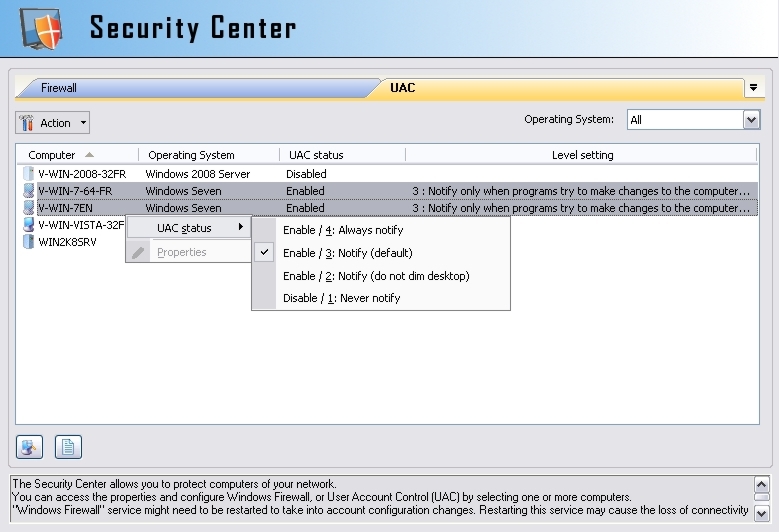
First, download the free 30 day version of our software if you have not installed it yet: Download IDEAL Administration. Once installed, just execute it under a domain admin account. Use the right click on the remote computer and select Security Center. You may use the "UAC" tool from the Security Center to remotely configure User Account Control on your computers (Windows Vista or greater OS). "RemoteRegistry" service must be up and running on these computers.
For doing so, open the "Computers" menu, then "Security Center". You can also make a multi-selection from the right view on the desired computers, then right click "Security Center". Computer selection can also be modified by clicking on the
In this tab, you can access User Account Control (UAC) parameters for the selected computers. You can select one ore more computers, then apply the desired action by clicking on the For computers running Windows Vista / Windows Server 2008, UAC can be enabled or disabled. Since Windows 7, it is possible to define a level of setting : - 4 : Always notify [enabled] - 3 : Notify only when programs try to make changes to the computer (default) [enabled] - 2 : Notify only when programs try to make changes to the computer (do not dim desktop) [enabled] - 1 : Never notify [disabled] Multi-selection : if a Windows Vista computer and a Windows 7 computer are selected, enabling UAC will have for effect to set UAC to level 3 (default) on the Windows 7 computer. To be taken into account, a change may required restarting the remote computer. Finally, it is also possible to access User Account Control (UAC) properties of a computer, by double-clicking on the right line.
|
| Also concerns the following software: IDEAL ADMINISTRATION |
| Last modification: 09/23/2019 |
 button.
 button, or by right-clicking. Example: "UAC status", "Disable".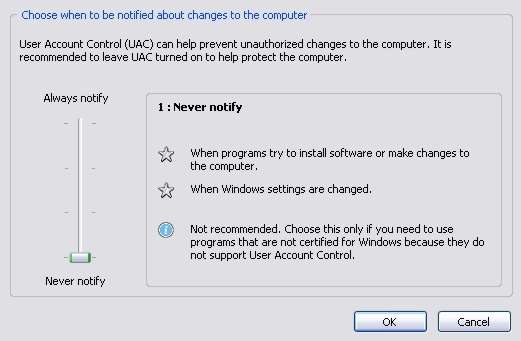
Want to check for yourself? Try IDEAL REMOTE free for 30 days.
No commitment • No agent • Support included • Ready to use in 5 minutes


IDEAL REMOTE 26.7
DOWNLOAD FREE 30-DAY TRIAL
SOFTWARE
SERVICES
SITEMAP
POINTDEV
ESPACE REVA2 ALLEE JOSIME MARTIN
13160 CHATEAURENARD
FRANCE


