


 Français
 English
 Deutsch
 Italiano
 Русский
IDEAL
Remote
Remote
Control de escritorio remoto de sus servidores y estaciones de trabajo Windows

A partir de 249 € (EUR)
Ver toda la lista de preciosCompatible con
- Windows Server 2025
- Windows Server 2022
- Windows Server 2019
- Windows Server 2016
- Windows Server 2012
- Windows Server 2008
- Windows 11
- Windows 10
- Windows 8
Disponible en


IDEAL REMOTE: NOVEDADES
IDEAL REMOTE
Version 26.8.5NOVEDADES
IDEAL REMOTE
Version 26.8.5NOVEDADES
DESCARGAR VERSIÓN DE PRUEBA 30 DÍAS
Sin compromiso • Sin agente • Soporte incluido • Listo en 5 minutos
Descubra las últimas evoluciones de nuestro software.
Esta página reúne las nuevas funcionalidades, mejoras y optimizaciones implementadas para satisfacer mejor las necesidades de los administradores de sistemas.
Esta página reúne las nuevas funcionalidades, mejoras y optimizaciones implementadas para satisfacer mejor las necesidades de los administradores de sistemas.
-
15/11/2019New features in version 14.65
This new version fixes and enhances some features of the software.
- Applying a fix when the remote control time of Windows 10 computers is too long (Please read: https://www.pointdev.com/en/faq/faq-id-983.html).
- Loading computer properties (left view) could cause excessive CPU usage.
- Automatic configuration of a default domain controller for each domain to speed up load and access speeds to endpoints.
- Accelerated TightVNC remote control: Improved pre-requisite verification, better Aero system management, detection of Antivirus slowdown.
- The dialog box "Properties" of a remote computer could be long to display, it is corrected.
- Warning message if the remote registry access services (RemoteRegistry) are not started.
- Warning message if WMI services are not allowed remotely.
- Added information in our FAQ online: https://www.pointdev.com/en/faq/faq.php?product=ir
Do not hesitate to contact us on support@pointdev.com if you notice an abnormal functioning of the software or if you have an improvement to suggest us.
-
26/06/2019New features in version 14.5
- REMOTE CONTROL TOOL
- Ability to automatically initiate the remote control functions from the command line:
- IR.EXE TVNC /computer:ComputerName: TightVNC remote control of ComputerName
- IR.EXE TVNC: TightVNC remote control with request of the computer name
- IR.EXE RDP /computer:ComputerName: Remote Desktop control (Windows) of ComputerName
- IR.EXE RDP: Remote Desktop control (Windows) with request of the computer name
- Example: create a desktop shortcut such as "C:\Program Files (x86)\Pointdev\IDEAL Remote\IR.EXE" TVNC to automatically launch IDEAL Remote in remote control in requesting the name of the remote station.
- Ability to automatically initiate the remote control functions from the command line:
- WINDOWS SERVER 2019
- Identification of Windows Server 2019 in the software
- Compatibility tests
- VARIOUS
- Display of the UBR value (Update Build Revision) of the computers in the Microsoft Windows Network list.
This value is used to know the latest update installed on the computers and servers.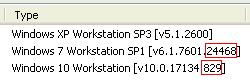
- The configuration wizard might not retrieve the domain name in Windows 2016 & +.
- Display of the UBR value (Update Build Revision) of the computers in the Microsoft Windows Network list.
- Some fixes.
- Documentation update.
- REMOTE CONTROL TOOL
-
01/02/2019New features in version 14.2
- MODIFYING IP ADDRESSES REMOTELY
- Automatic recognition of the new IP address
- Fixed a bug when multiple network adapters available on the remote computer
- IMPROVEMENTS AND CORRECTIONS
- Exporting lists: Adding a button Check all / Uncheck all
- Shutdown / Restart: Fixed a bug that could occur on Windows 10
- Documentation update
- MODIFYING IP ADDRESSES REMOTELY
-
26/09/2018New features in version 14.0
- NEW VERSION FOR THE REMOTE CONTROL TOOL
- Integration of TightVNC 2.8.11 for more speed and stability
- Some fixes
- Translation into French, German, Italian and Spanish
- Digital signature of executables
- The update of this new version on the clients and the servers is done automatically
- IMPROVED CERTAIN FUNCTIONS FOR MORE SPEED
- TEST COUNTER RESET
- Some modifications and fixes
- Documentation update
- NEW VERSION FOR THE REMOTE CONTROL TOOL
-
17/04/2018New features in version 2018 [v13.2]
- REMOTE CONTROL TOOL
- New management for automatically adding a rule in the Windows Defender Firewall (Windows 10 & Windows 2016 Server) allowing remote control.
- In fact, the new Windows Defender Firewall no longer allows it to restart for security issues.
- This new firewall management is also compatible with Windows 7 / Windows 2008 Server / Windows 2012 Server.
- Fixed a bug when the size of the authorization message exceeded 250 characters.
- INTERNET REMOTE CONTROL
- Integration of TightVNC 2.8.8 in Pointdev Remote Control (PRC) for faster and stability.
- Full translation into French, German, Italian and Spanish.
- Digital signature of executables.
- Fixed a bug that could limit the number of computers displayed in the tab Internet Remote Control of the software.
- REMOTE COMMAND LINE TOOLS
- You can now run the netsh command, which allows you to configure the remote firewall. We added by default a rule to allow the remote WMI management in the Windows 10 Defender Firewall. This rule is added when you first install the software, but you can add it manually: Tools menu, Options, Tools, Command Prompt Tools, Add button.
Add the following line: netsh advfirewall firewall add rule dir=in name=WMI program=%systemroot%\system32\svchost.exe service=winmgmt action=allow protocol=TCP localport=any
To execute this command on one or several computers, just right click on the selected computers (right view) and select Command Prompt Tools.
- You can now run the netsh command, which allows you to configure the remote firewall. We added by default a rule to allow the remote WMI management in the Windows 10 Defender Firewall. This rule is added when you first install the software, but you can add it manually: Tools menu, Options, Tools, Command Prompt Tools, Add button.
- Some modifications and fixes.
- Documentation update.
- REMOTE CONTROL TOOL
-
06/02/2018New features in version 2018 [v13.0]
- NEW VERSION FOR THE REMOTE CONTROL TOOL
- Integration of TightVNC 2.8.8 for more speed and stability.
- Translation into French, German, Italian and Spanish.
- Digital signature of executables.
- The update of this new version on the clients and the servers is done automatically.
- REMOTE CONTROL FROM SMARTPHONE OR TABLET
- You can now easily take control of your client computers and Windows servers using your smartphone and tablet.
- This function needs a WIFI network within your organization for smartphone and tablet connection.
- We explain everything in our online FAQ:
https://www.pointdev.com/en/faq/faq-ideal-remote-how-vnc-remote-control-computer-smartphone-tablet-remote-ripple-id-951.html - This feature is compatible with iOS and Android smartphones and tablets.
- TEST COUNTER RESET.
- Some modifications and fixes.
- Documentation update.
- NEW VERSION FOR THE REMOTE CONTROL TOOL
-
25/07/2017New features in version 2017 [v12.2]
- Windows Microsoft Network
- List Domain Computers from Active Directory
- This new version uses the current Active Directory domain by default to list all computers in the domain. You can activate this function if the domain is already configured in a tab. For it, use the "Filter" button to the right of the domain name (right view) then "Configure \ Apply a filter \ List computers by Active Directory Domain", "Apply".
- Previously, the list of computers was by default obtained by Netbios and it was possible that you don't have all the computers in the list.
- The routines for displaying information from client computers and servers have been reviewed and improved.
- List Domain Computers from Active Directory
- Filtering: Adding a filter for Windows Server 2016
- Rename a computer
- Acceptance of the character "_" in the new computer name.
- Default tabs
- The default tabs are added when the software is run under a different user's profile.
- Some modifications and fixes.
- Documentation update.
- Windows Microsoft Network
-
06/12/2016New features in version 2017 [v12.0]
- Remote Control Tool
- New ultra fast version of Remote Control Software
- The viewer and server have been completely redesigned for a much better display and control.
- IDEAL Administration installs and configures the 32-bit or 64-bit version of the remote control depending on the type of local or remote operating system (Gain in Speed).
- This new version is updated automatically on clients and servers.
- Clipboard transfer can be deactivated (menu "Control", "TightVNC Settings", "Advanced" tab).
- Aero system of the remote client is automatically stopped (if configured) even if the remote user does not have enough rights.
- TSE Remote Desktop
- Remote Shadowing management for Windows 10, Windows Server 2012 R2 and Windows Server 2016. Remote Shadowing lets you remotely view a user's session via RDP.
- You can find this new feature here: right-click on a server, Remote Control, Remote Desktop Shadow, and in the Sharing and Printing Center (Terminal Services Sessions tab, Action menu, Remote Shadow).
- System Events
- Added Stop button to stop full loading of events.
- Saving and recalling the size of the window.
- NetBIOS Authentication
- Possibility to execute the "Logon as..." command on several computers at the same time.
- Wake On Lan Logging
- Database logging (AUDITS_LOGS table) for automatic wake up of computers.
- Windows Server 2016
- Integrating and managing of the new operating system.
- Test counter reset.
- Some modifications and fixes.
- Documentation update.
- Remote Control Tool
-
05/09/2016New features in version 2016 [v11.7]
- IP parameters:
- You can now remotely change the IP address of the DNS Server (computer properties, "Network" tab, "Action" button then "Modify IP Settings").
- Some modifications and fixes.
- Documentation update.
- IP parameters:
-
07/06/2016New features in version 2016 [v11.5]
- Pointdev Remote Control
- Security has been improved when changing the password of your Pointdev Remote Control account.
- Printers
- Fixed an issue with adding a remote printer on a Windows 10 workstation.
- Pointdev Remote Control
-
15/02/2016New features in version 2016 [v11.2]
- TightVNC (Remote Control)
- Simplification of the authorization request by checking the box "Always prompt the user to accept the connection" (Control menu, TightVNC configurator, "Authorization" tab).
- When this option is enabled, the remote user is notified by a message and can accept or reject the connection.
- The information sent to the user can be set by clicking the "Advanced" button (your user name, your IP address, NetBIOS name of your computer and a specific message).
- Sharing and Printing Center
- It is now possible to add a printer without any selection in the list.
- Tab management in the right view
- Tabs of type "Remote Control History", "Favorites/VPN", "Tools" are automatically refreshed in the right view when clicking (focusing) the concerned tab.
- Appearance: tabs are now adjusted by default according to their text size. You can change this setting from the "Tools" menu, "Options", "General," "Tabs" "Width" parameter.
- Some modifications and fixes.
- Documentation update.
- TightVNC (Remote Control)
-
28/09/2015New features in version 2016 [v11.0]
- Remote control over the Internet
- New Internet Remote Control Module for your Windows computers (Windows XP to Windows 2012 Server).
- You can create lists of computers that are outside your network. These lists can be personal or for all administrators of your company. After installing our "Pointdev Remote Control" agent on the remote computers, you can easily take control of them from IDEAL Remote.
- Microsoft Windows Network
- Column "Status" added (in the right view) to indicate whether the computer is "Online", "Offline", or "Acces is denied".
- Fixed a problem with the "last boot up time" column that could disappear from the list with some configurations.
- Test counter reset.
- Some modifications and fixes.
- Documentation update.
- Remote control over the Internet
-
03/07/2015New features in version 2015 [v10.7]
- Sharing and Printing Center
- Added the tab "Printers" in Sharing and Printing Center to list and manage printers from one or more computers.
- Scheduling computer shutdown
- You can now plan schedule the shutdown of one or more computers and configure the stop parameters: right click a computer, Shutdown, Schedule button.
- Pointdev Remote Control
- Some fixes and improvements.
- Database
- Fixed a problem that could occur with recording of computers (COMPUTER_LOGS).
- Microsoft Windows Network
- When you first launch the software, all the computers in your domain are now listed in the Microsoft Windows Network tab (including unreachable computers appearing with a red cross).
- This option can be configured from the "Tools" menu, "Options", "General" "Display all domain computers"
- Windows 10
- Version number of Windows 10 has been updated to take into consideration this type of OS in the main view, in the filters and in the "Computer properties" dialog.
- Some modifications and fixes.
- Documentation update.
- Sharing and Printing Center
-
14/03/2015New features in version 2015 [v10.3]
- Active Directory properties
- In the right view of the software ("Microsoft Windows Network" tab) properties coming from Active Directory are now displayed faster when the remote computer is unreachable.
- User-friendly
- A small arrow has been added on "Microsoft Windows Network" tabs (right view of the software). It allows to switch the view to a simple mode and hide some controls (eg list of domains, ...) to save space on the screen. This setting is saved and restored for each tab when reopening the program.
- All the "treeview" controls are now designed with Vista theme buttons (expand/collapse) even on computer running Windows XP.
- Some modifications and fixes
- Documentation update
- Active Directory properties
-
15/12/2014New features in version 2015 [v10.2]
- Computer properties
- Performance tab added: real-time graphs showing the CPU usage and swap file.
- Disk usage tab added: real-time graph showing the usage of disks.
- Networking tab added : real-time graphs showing the network usage.
- Boot tab added : lists startup elements.
- Codecs : lists audio and video codecs.
- The dialog box has been redesigned.
- Sharing Center
- The new option Sharing Center allows on the "right click" of one or more computers to manage shared folders, opened files, user sessions and Terminal Services sessions.
- Windows 10
- Windows 10 computer type is now supported in the main view, in filters and in the "Computer properties" window.
- Product ID
- Fixed an issue in the main view. The product ID was not displayed for some configurations.
- Remote shutdown of computers
- Fixed a problem with multiple shutdown of machines.
- Some modifications and fixes
- Documentation update
- Computer properties
-
20/08/2014New features in version 2015 [v10.0]
MAJOR UPGRADE WITH TEST COUNTER RESET
- Recording of computers in database
- You can choose to automatically enable recording of computers and their properties in database.
- Properties of turned off or unreachable computers (eg red crosses) will be displayed in the list according to the latest information retrieval ("Microsoft Windows Network" tab, in the right view).
- These properties are regularly kept up to date in database.
- This setting is available from the "Tools" menu, "Options", "Database", "Computers".
- Remote shutdown of a computer
- You can now specify the reason for shutdown to fill in more precisely event logs.
- The remote shutdown of a computer is now stored in database (AUDIT_LOGS table).
- Physical memory
- Fixed a problem with recovery of RAM for a computer.
- Last boot up time
- The "System up time" property could be incorrect if the computer was on for longer than 49 days. The last boot up time is now correctly displayed.
- Licenses management
- You can now deactivate by yourself a license on a computer through the windows "License history".
- Some modifications and fixes
- Documentation update
- Test counter reset.
- Recording of computers in database
-
03/06/2014New features in version 2014 [v9.7.x]
IMPORTANT UPGRADE WITH TEST COUNTER RESET
- Configuration Wizard
- A wizard helps you and guides you step by step to configure your software when running it for the first time.
- You can configure your Active Directory and WMI access rights, select tabs to display in the main view, or check the prerequisites for use in our online FAQ to get the most out of your software.
- Filtering computers
- You can now select from the main view ("Microsoft Windows Network" tab) an existing filter by clicking on the "Filter" button.
- Software configuration
- This dialog box has been redesigned ("Tools" menu, "Options").
- Tabs positioning
- Fixed a graphical bug when the tab system was configured with a vertical orientation.
- Test counter reset
- Configuration Wizard
-
18/03/2014New features in version 2014 [v9.5]
- Wake On LAN
- This dialog box has been redesigned.
- The Wake On LAN configurations of your computers are now stored in database for easy processing.
- To automatically populate this database, you can right-click on ore more computers then "Wake On LAN".
- Data retrieval is now faster and multi-threaded.
- You can also add / modify a configuration manually.
- You can wake up occasionally one or more computers by selecting them in the list via the checkbox and clicking "Wake up".
- Or manage repeatedly and automatically the wake up of your computers by creating a scheduled task.
- Task Scheduler
- The node "Task Scheduler Library" was added in the left explorer view under "Scheduled Tasks (v2.0)" and allows you to list tasks by folder.
- Favorites / VPN
- Your folders now appear in a configurable toolbar.
- History of connections
- From the main view of the software, "History of connections" tab, you can now view the entire history by selecting in the list "Whole period".
- Installed software
- An option was added to list or not some Microsoft hotfixes that may appear in the "Installed Software".
- Some modifications and fixes
- Documentation update
- Wake On LAN
-
22/01/2014New features in version 2014 [v9.2.x]
- Scheduled Tasks version 2.0
- Support for Windows 2.0 Task Scheduler used by Windows 7, Windows 8, Windows Server 2008 and Windows Server 2012.
- Viewing scheduled tasks on one or more computers (what does not allow Microsoft tools), management of tasks (creation, modification, deletion).
- You can rename a task (unlike Microsoft tool), launch it or stop it or also disable it.
- When creating a task, you can specify one or more triggers, one or more actions and define the conditions and settings that will trigger it.
- Scheduled Tasks 2.0 have been added to database inventory.
- Minimum required configuration: the admin computer must be running Windows Vista (or higher OS).
- Windows 8.1 / Windows 2012 Server R2
- These OS's are now supported in the main view, in filters and in the "Computer properties" window.
- License management
- New "license history" button, allowing to show the computers where the license key has been activated ("?" menu, "Registration").
- Interventions
- Fixed an issue that could occur when editing or deleting an intervention in the database.
- Some modifications and fixes
- Documentation update
- Scheduled Tasks version 2.0
-
30/10/2013New features in version 2014 [v9.1]
- Registry
- Management of the Registry on remote machines : menu Computers, Registry,
- Creation, modification, and deletion of keys and values,
- Search for a string in a key, value, or contents on one or more computers in the network.
- Installed software (Application Center)
- "Internet Explorer" software is now listed if it is installed on a Windows Vista (and higher OS) computer.
- TightVNC
- New type of configuration added in the TightVNC settings. The configuration "Other (VNC-compatible)" is intended for computers other than Windows, Linux or Mac and/or for machines already hosting a VNC-compatible server.
- Some modifications and fixes
- Documentation update
- Registry
A partir de 249 € (EUR)
Ver toda la lista de preciosCompatible con
- Windows Server 2025
- Windows Server 2022
- Windows Server 2019
- Windows Server 2016
- Windows Server 2012
- Windows Server 2008
- Windows 11
- Windows 10
- Windows 8
Disponible en
DESCARGAR PRUEBA GRATIS 30 DÍAS
IDEAL REMOTE 26.8.5