


 Français
 Español
 Deutsch
 Italiano
 Русский

Espace Reva
2 allée Josime MARTIN
13160 CHATEAURENARD
FRANCE
Tel : 33 9 77 63 61 94
Fax : 33 4 32 62 71 35 Tel: 33 9 77 63 61 94

FAQ : IDEAL Alerter
Monitor, Alert and React on your Windows Servers and Stations
How to remotely manage your Windows 7, Windows 8, Windows 10 or Windows 11 client workstations?How to administrate a Windows 7, Windows 8 or Windows 10 (and higher) station remotely? |
What are the prerequisites for administering a Windows 7 / 8 / 10 (and higher) computer? I have to administer a Windows 10 station and when I try to display the computer properties, I obtain a "Connection error" message. What can I do to correct this problem? |
|
Here're some general tips to verify for Windows 7 / 8 / 10 (and higher) computers:
You must have administrative rights/privileges over your domains, workstations and servers of your network. Read more: How to get administrative rights?
The "RemoteRegistry" service must be up and running on the remote computer. You can automatically configure in Automatic start using a GPO: Windows Server 2003 Domain Controller
Windows Server 2008/2012/2016/2019 or Domain Controller
The WMI service must be activated on the client workstations for optimal remote management. Our software uses WMI in particular for the installation and remote start of the takeover service (screen sharing). WMI is also used for the recovery of information such as serial numbers, or the memory capacities of remote stations. See our FAQ: How set up a Remote WMI Connection? Network discovery need to be activated. When Network Discovery is on, the Windows 7 / 8 / 10 (and higher) computer can see other network computers / devices and become also visible to other network computers and to our software. This is in Control Panel, Network and Sharing center, Advanced sharing settings
Check if remote connections are allowed on the remote computer: Control Panel \ Security \ Advanced system settings \ Remote use: Allow remote assistance connections (Remote Assistance) and (Remote Desktop).
File and printer sharing need to be activated on the Windows 7 / 8 / 10 (and higher) computer. This is in Control Panel, Network and Sharing center, Advanced sharing settings
Some Antiviruses see our administration tools as false positives and block their execution on remote workstations. This can for example be counteracted by the impossibility of launching the remote control of a remote station because the copying of files is not authorized by your Antivirus. In this case, you must authorize our programs in your Antivirus, namely: - IA.EXE
- IACMD.EXE
- IACMDSRV.EXE
- TVNVIEWER.EXE
- TVNSERVER.EXE
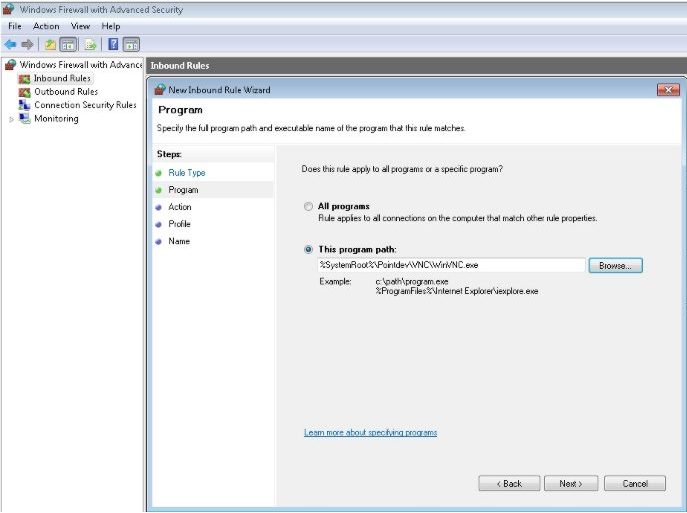
Before administrate a Windows 7 / 8 / 10 (and higher) station, we strongly recommend you first to DEACTIVATE "User Access Control" aka UAC. This is in "Control Panel" ,"User Accounts" , "Turn User Accounts Control on off". To take the remote control of Windows 7 / 8 /10 (and higher) computers with "TightVNC", you'll have to add an exception on the remote computer, into the Windows Firewall for the communication port used by the program (5900 by default) and/or for the program "\Windows\Pointdev\VNC\WinVNC.exe" (VNC Server service) if you use version 1.X of the remote control tool, or for the program "\Windows\Pointdev\VNC\tvnserver.exe" (tvncserver_Pointdev service) if you use version 2.X. The point of creating an inboud rule on the TightVNC program is to not have to modify again this rule if you decide later to change the communication port used by TightVNC. Control Panel -> System And security -> Windows Firewall -> Advanced Settings -> Inbound Rules -> New Rule ... -> Check "Program" Example:
Last, check in the Network Settings if NetBIOS layer is enabled. |
|
Also concerns the following software: IDEAL ADMINISTRATION | IDEAL DISPATCH | IDEAL REMOTE | IDEAL MIGRATION |
| Last modification: 04/25/2022 |
Want to check for yourself? Try IDEAL Alerter free for 30 days.
No commitment • No agent • Support included • Ready to use in 5 minutes


IDEAL Alerter 2.0
SOFTWARE
SERVICES
SITEMAP
POINTDEV
ESPACE REVA2 ALLEE JOSIME MARTIN
13160 CHATEAURENARD
FRANCE


